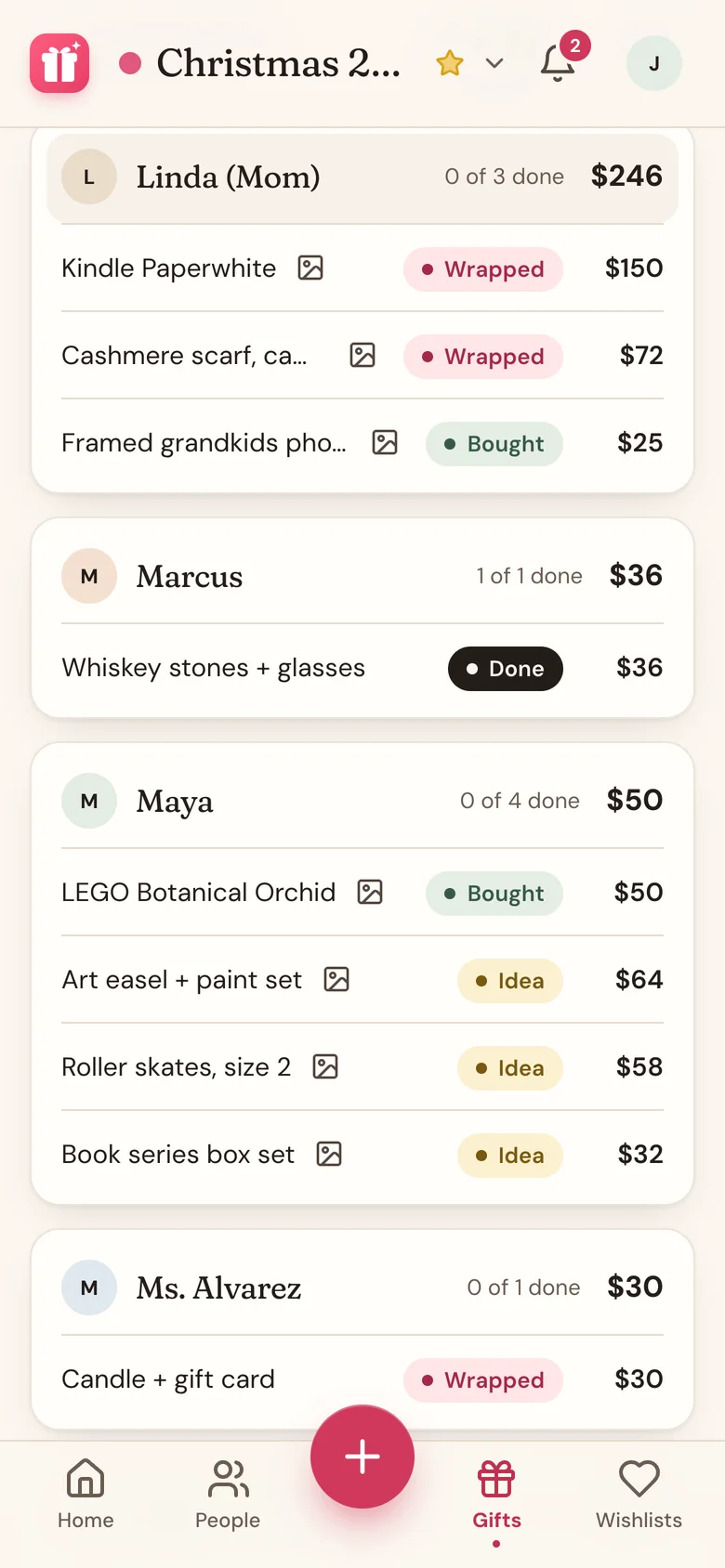
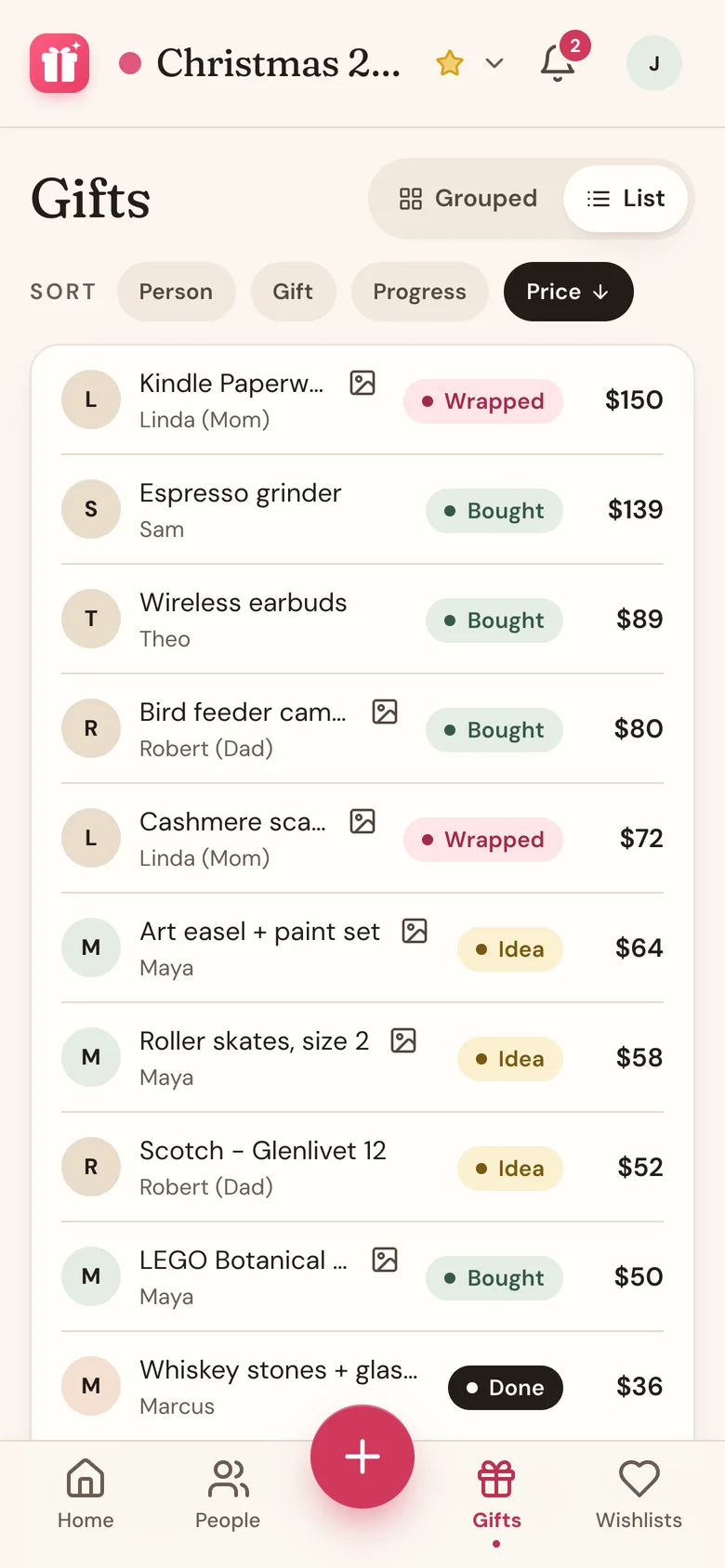
The Gifts tab shows every gift on the list you have open, for everyone at once. It's the quickest way to check what's still an idea, what's bought, and what you've spent.
Steps
- Tap Gifts in the bottom bar.
- Pick a view with the switch next to the title:
- Grouped puts each person in their own card, with how many gifts are done and what you've spent on them.
- List shows every gift in one list.
- In List, tap a sort button: Person, Gift, Progress, or Price. Tap the same button again to flip the order. Prices in other currencies sort by what they come to in yours.
- Tap a person's name in Grouped, or any row in List, to open that person's page.
- To save a copy, scroll to the bottom and tap Export to CSV. The file lists gifts in the order you see them, with each price's currency in its own column.
What's in the export
The file has one row per gift on the list you're viewing, with these columns: Person, Gift Name, Status, Cost, Tag Number, and Notes. It opens in Excel, Numbers, or Google Sheets.
Good to know
- The Gifts tab shows one list at a time. Switch lists with the list name at the top.
- The small photo icon next to a gift opens its photo.
- In Grouped, anyone who chipped in is listed under the gift, and the person's total is only your share.
- Gifts you're helping someone else with appear under Helping Out at the bottom. They aren't part of your list or the export.
- Wishpile remembers the view and sort you last used on this device.
- Turned on gift tag numbers? You'll also see a Tags view. See Number your gifts with tags.
- With a wishlist group picked at the top, the Gifts tab shows the group's wishes instead of your own gifts.
Related
Still stuck?
Ask Wishpile and get an answer in seconds, or email support@wishpile.com and a real person will get back to you. Quick answers live in the FAQ.