A list is one occasion you're buying for, like "Christmas 2026" or "Maya's 9th Birthday". The people, their gifts, and your budget for that occasion all live inside it.
Steps
- Tap the list name at the top of Home to open the switcher, then tap New list. (No lists yet? Tap Create list on Home.)
- Type a List name.
- Optional: under Countdown date (optional), tap Pick a date and choose the day of the occasion.
- Pick a Color. The preview above the colors shows how your list will look.
- Turn on Set as default list if this is the list you want Wishpile to open to.
- Tap Create list. Wishpile switches to your new list, ready for you to add people.
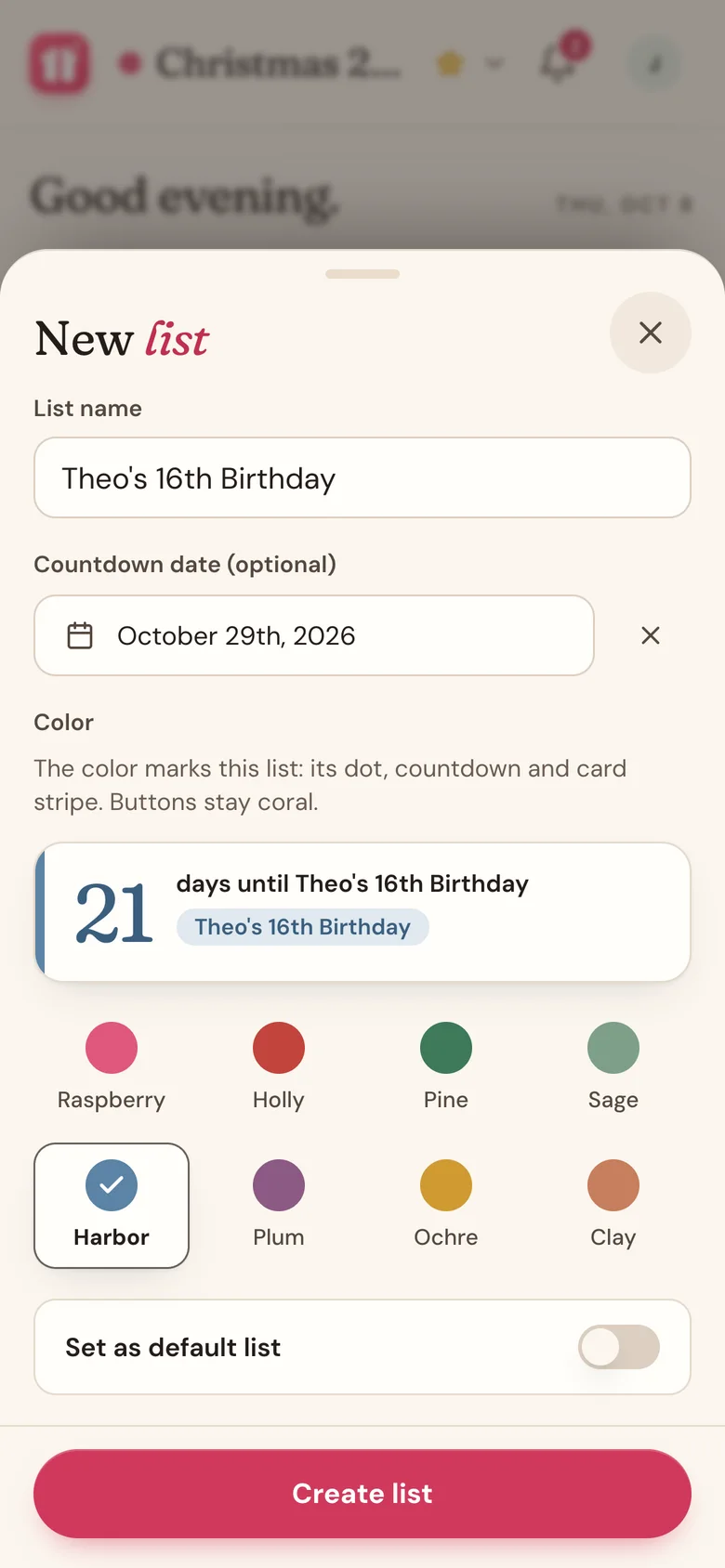
What the color does
The color marks the list: its dot in the switcher, its countdown number, and a stripe on its cards. It helps you tell lists apart at a glance. Buttons stay coral whatever color you pick.
There are eight colors: Raspberry, Holly, Pine, Sage, Harbor, Plum, Ochre, and Clay. In Edit list you can also pick a Custom color.
What the date does
- Home shows a countdown, like "84 days until Christmas 2026".
- Two weeks out, a countdown reminder shows up in the bell. Nudges like "2 people have no gift yet" also get more urgent as the day gets closer.
No date? That's fine. You just won't see a countdown or date-based reminders.
Change or clear the date later
Open the switcher and tap Edit list. Pick a new Countdown date (optional), or tap the X next to it to clear it. Then tap Save changes. Edit list is also where you rename the list or change its color.
Good to know
- Only one list can be the default. A star marks it in the switcher. To change it, switch to another list and tap Set as default.
- Last year's lists are worth keeping: they're a record of what you gave. To plan the same people again, clone the list instead of starting over.
Related
Still stuck?
Ask Wishpile and get an answer in seconds, or email support@wishpile.com and a real person will get back to you. Quick answers live in the FAQ.