Home shows your gift plan at a glance: the countdown, your budget, how many gifts are still to buy and wrap, your wishlist groups, and more. You choose which of those cards show, and in what order, so Home opens on what you check most.
Rearrange and hide cards
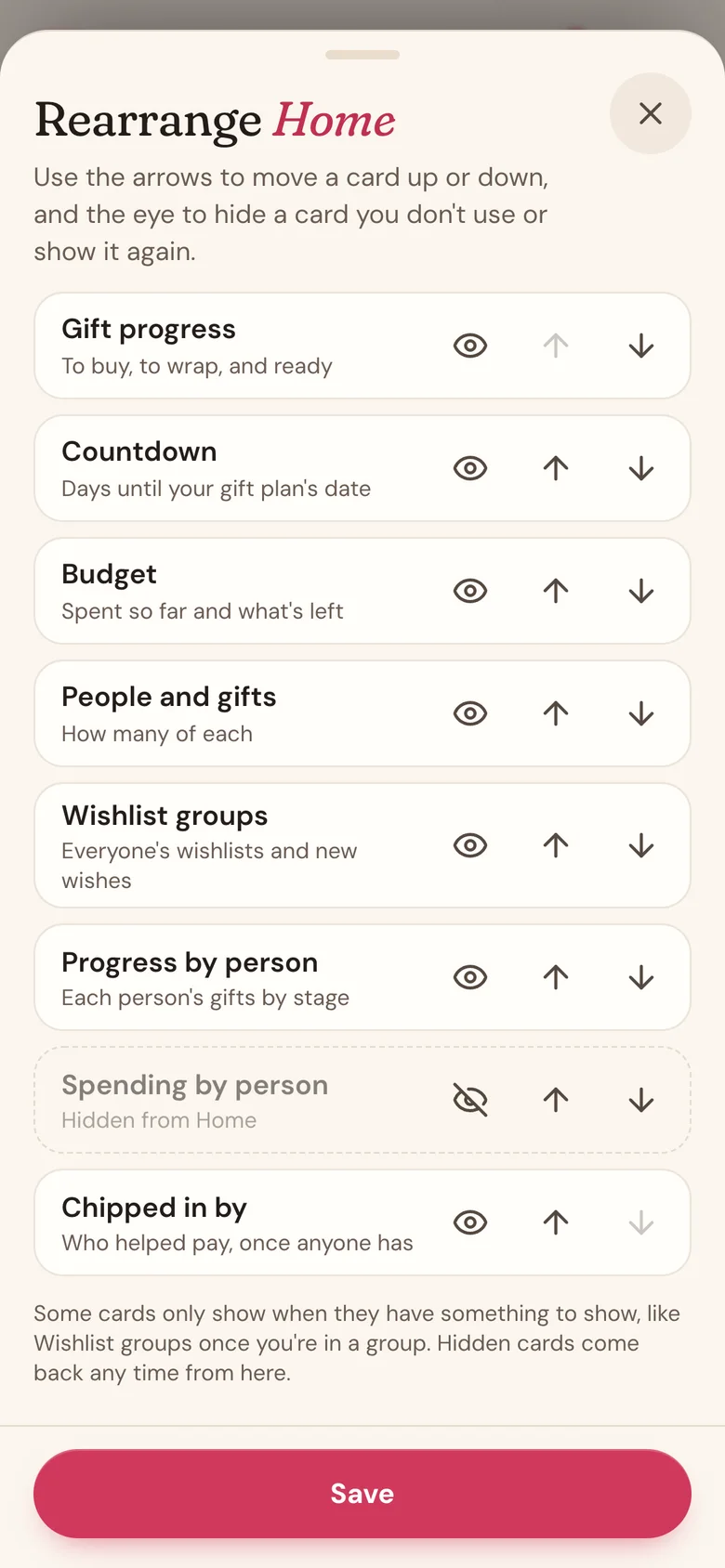
- On Home, scroll to the bottom and tap Rearrange Home.
- Tap the up and down arrows next to a card to move it. The card at the top of the list shows first on Home.
- To hide a card you don't use, tap the eye next to it. The card turns faint and says Hidden from Home. Tap the eye again to bring it back.
- Tap Save.
You can also get there from your Profile: tap your initial at the top right, then Profile settings, and in the Display card tap Rearrange next to Home layout.
The cards you can move
- Countdown: the days until your gift plan's date.
- Budget: what you've spent and what's left.
- People and gifts: how many of each are in your gift plan.
- Gift progress: how many gifts are still to buy, still to wrap, and ready, with a row for each person.
- Wishlist groups: each group you're in, with everyone's wishlists and the newest wishes.
- Progress by person, Spending by person, and Chipped in by: each person's gifts by stage, what you've spent on each person, and who helped pay.
Some cards only show when they have something to show. Wishlist groups needs you to be in a group, and Chipped in by waits until someone has chipped in.
Good to know
- Your layout is saved to your account, so Home looks the same on your phone, tablet, and computer.
- Hiding a card only changes your Home. Nothing on it is deleted, and the same details are still on the People and Gifts tabs.
- Hidden cards come back any time: Rearrange Home is always at the bottom of Home.
- Notes like Getting started stay at the top until you finish or hide them, and the buttons for your wishlist groups stay at the bottom.
- To go back to how Home started, open Rearrange Home, tap Back to the usual Home, then tap Save.
Related
Still stuck?
Ask Wishpile and get an answer in seconds, or email support@wishpile.com and a real person will get back to you. Quick answers live in the FAQ.