The bottom bar moves you between screens. The top bar picks which list or group you're looking at.
The bottom bar
- Home: your countdown, budget, and gift progress.
- People: everyone on the current list. Tap a name to see their gifts.
- Gifts: every gift on the list in one place.
- Wishlists: your own wishlists and your groups.
The + button
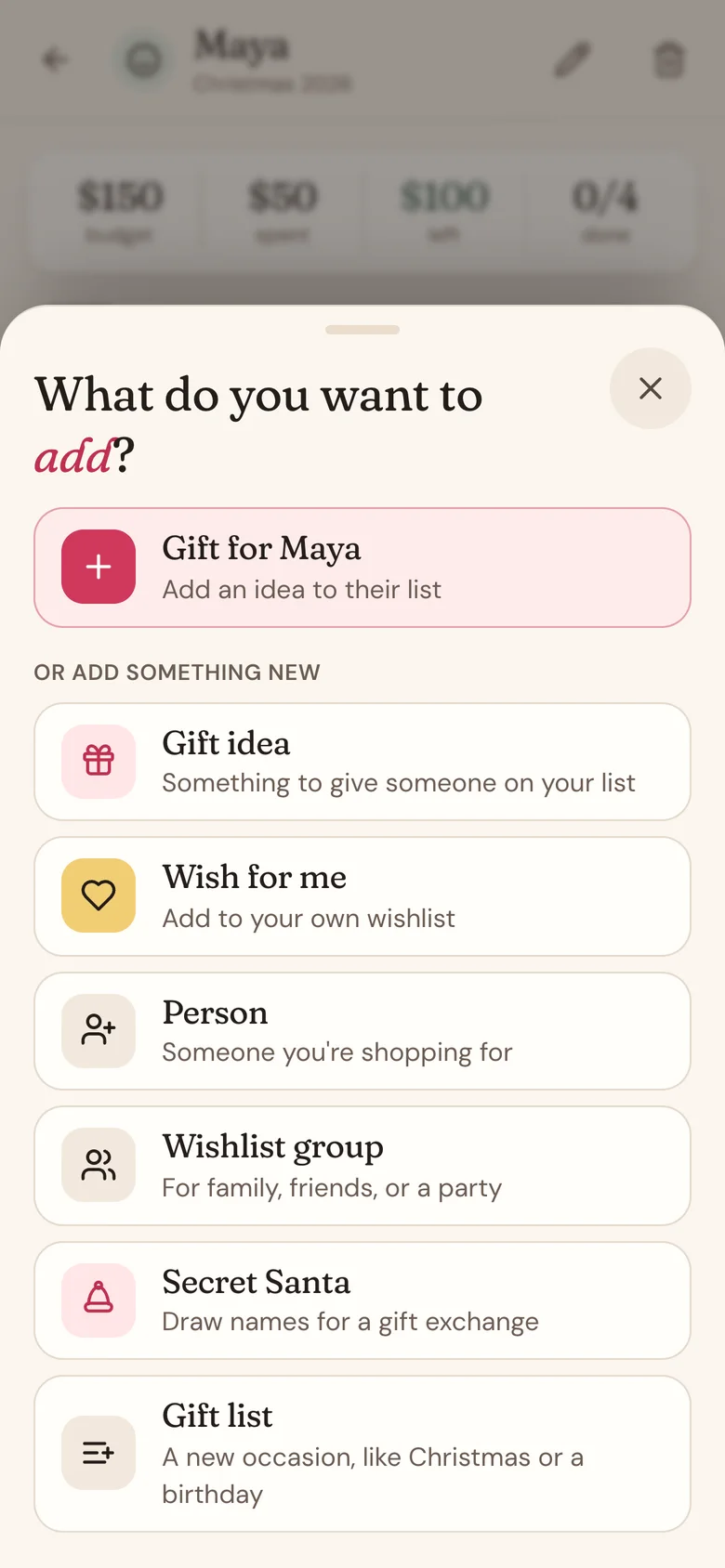
The round + in the middle of the bottom bar opens What do you want to add? It's the same list on every screen, in the same order:
- Gift idea: asks who the gift is for, then adds it.
- Wish for me: adds something to your own wishlist. In a group, it goes on your wishlist in that group.
- Person: someone you're shopping for, on the current list.
- Wishlist group: a group where everyone shares their wishlists, for family, friends, or a party.
- Secret Santa: a gift exchange where Wishpile draws the names.
- Gift list: a new occasion, like Christmas or a birthday.
Some screens add one shortcut at the top for what you're looking at. On a person's page it's Gift for them, on one of your wishlists it's Wish on that list, and on Wishlists it's New wishlist.
The list switcher
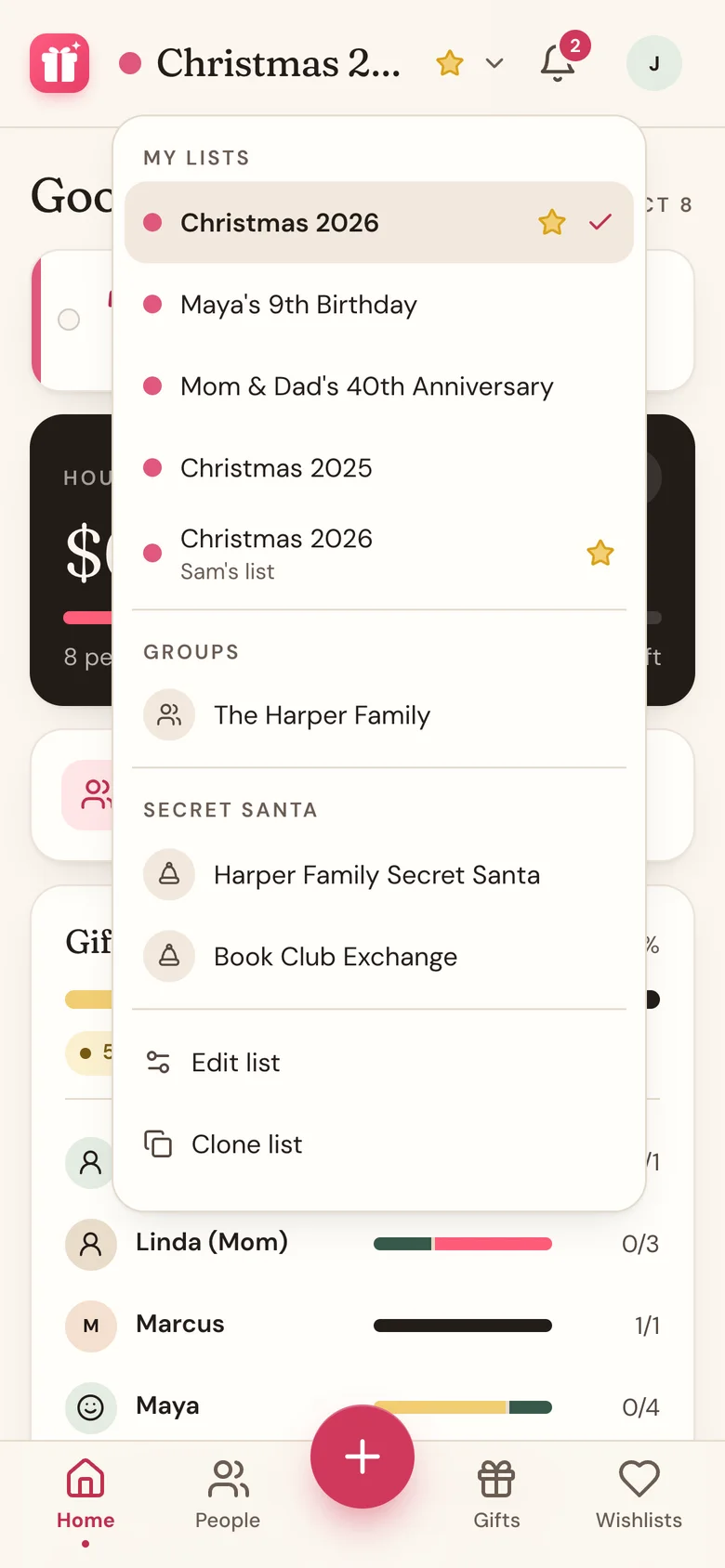
The name at the top of Home, People, and Gifts is the list you're looking at. Tap it to open the switcher.
- Under My lists, tap a list to switch to it. A star marks your default. If you plan with a partner in a household, their lists show here too, with their name underneath, for example "Sam's list".
- Under Groups or Secret Santa, tap one to switch into it. Home, People, and Gifts then show that group. Pick a list under My lists to switch back.
- On Home and People, you'll also find Set as default, Edit list, Clone list, and Archive (it names the list and asks before archiving).
- Archived lists, just above New list at the bottom of the menu, opens the lists you've put away. See Archive an old list.
- Tap New list to start a new occasion.
The bell
The bell at the top right shows reminders, like people with no gift yet or an occasion coming up. A red number means something is new since you last looked. Tap a reminder to jump to it. The bell only appears when there's something to remind you about.
Your account menu
Tap the round icon next to the bell. It shows the email you're signed in with, plus Profile settings and Share Wishpile. Under Help are three ways to get an answer: Ask Wishpile to type a question to our AI assistant, Help & FAQs to browse the guides, and Contact support to email a person. Log out is at the bottom.
Good to know
- Wishpile remembers the last list or group you picked on each device.
- Can't see a group you were invited to? See Can't find your group?.
Related
Still stuck?
Ask Wishpile and get an answer in seconds, or email support@wishpile.com and a real person will get back to you. Quick answers live in the FAQ.