Exclusions tell the draw who shouldn't be matched, like a couple who'd buy for each other anyway. Set them up before you draw names.
Steps
- Tap Wishlists in the bottom bar, then tap your Secret Santa group's card to open it.
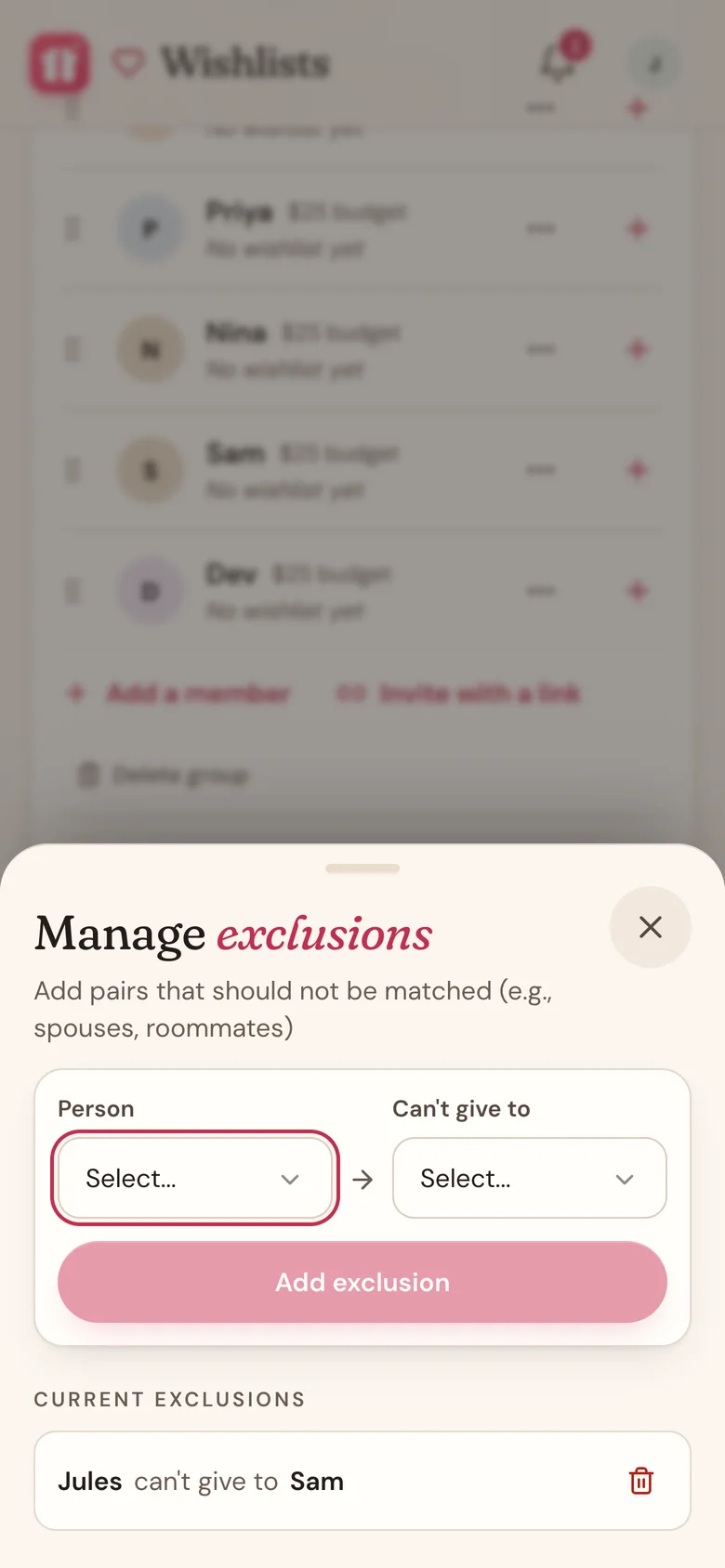
- On the draw card under Draws, tap Exclusions.
- Under Person, pick someone. Under Can't give to, pick who they shouldn't draw.
- Tap Add exclusion. It shows up under Current exclusions.
- Add the same pair again the other way around.
Why add both directions
Each exclusion only works one way. "Sam can't give to Jules" doesn't stop Jules from drawing Sam. For a couple, add both: Sam can't give to Jules, and Jules can't give to Sam.
To remove one, tap the trash icon next to it.
Sit it out yourself
Organizing the exchange but not swapping gifts? Turn on Exclude myself from draw on the draw card. Nobody draws you, and you don't draw anyone. The participant count shows "(excluding you)" so you know it worked.
Good to know
- Only the organizer sees exclusions, and only before names are drawn. Already drawn? Tap Reset first, change your exclusions, then draw again.
- Too many exclusions can make a draw impossible, especially in a small group. If that happens, Wishpile tells you and nothing is drawn. Remove an exclusion or two and try again.
- Each draw has its own exclusions. If you add a second draw to the group, set them up there too.
Related
Still stuck?
Ask Wishpile and get an answer in seconds, or email support@wishpile.com and a real person will get back to you. Quick answers live in the FAQ.