Everything about your wishlists can change as your wishes do. Here's where to find each option.
Rename a wishlist
- Tap Wishlists in the bottom bar.
- On the wishlist's card, tap the ... button, then Edit wishlist.
- Change the Wishlist name and tap Save changes. The share link stays the same.
Reorder your wishlists
With two or more wishlists, each card has a grip (six small dots) on its left edge. Press and drag the grip to move the card up or down. Wishpile remembers the order.
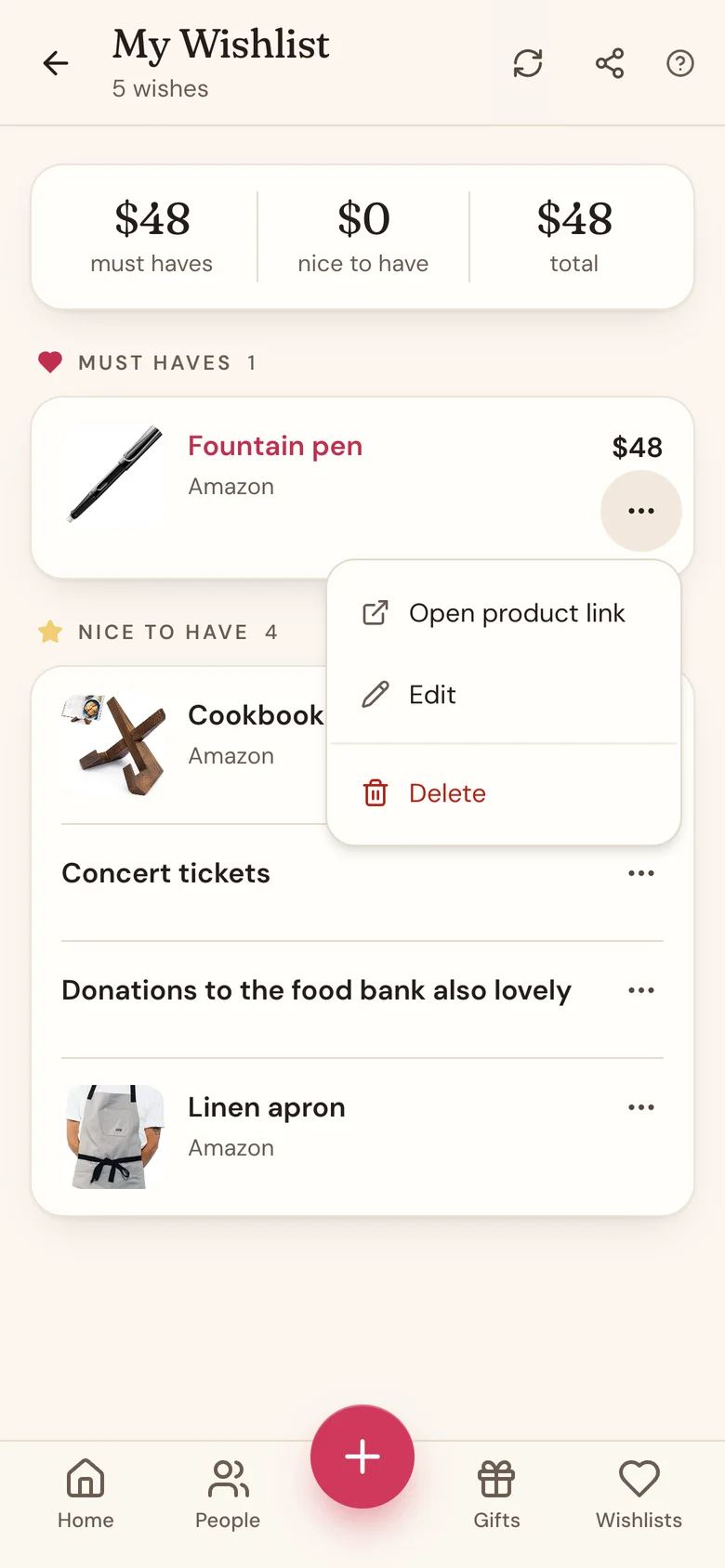
Edit or delete an item
- Open the wishlist from the Wishlists tab.
- Tap the ... button next to an item, then Edit or Delete. (You can also tap the item, then Edit item.)
- Make your changes and tap Save changes, or confirm with Delete.
Delete a wishlist
- On the Wishlists tab, tap the ... button on the wishlist's card, then Delete wishlist.
- Tap Delete to confirm.
The wishlist and all its items are gone, and its share link stops working. Anyone who opens it sees Wishlist not found. This can't be undone.
Good to know
- Want something different from what's already listed? Delete the old item and add a new one instead of editing it. Someone may already have claimed the old one, and editing keeps that claim.
- Wishlists you keep in a group also appear under Yours, marked with the group's name. You add to them here, but they're managed in the group.
Related
Still stuck?
Ask Wishpile and get an answer in seconds, or email support@wishpile.com and a real person will get back to you. Quick answers live in the FAQ.